
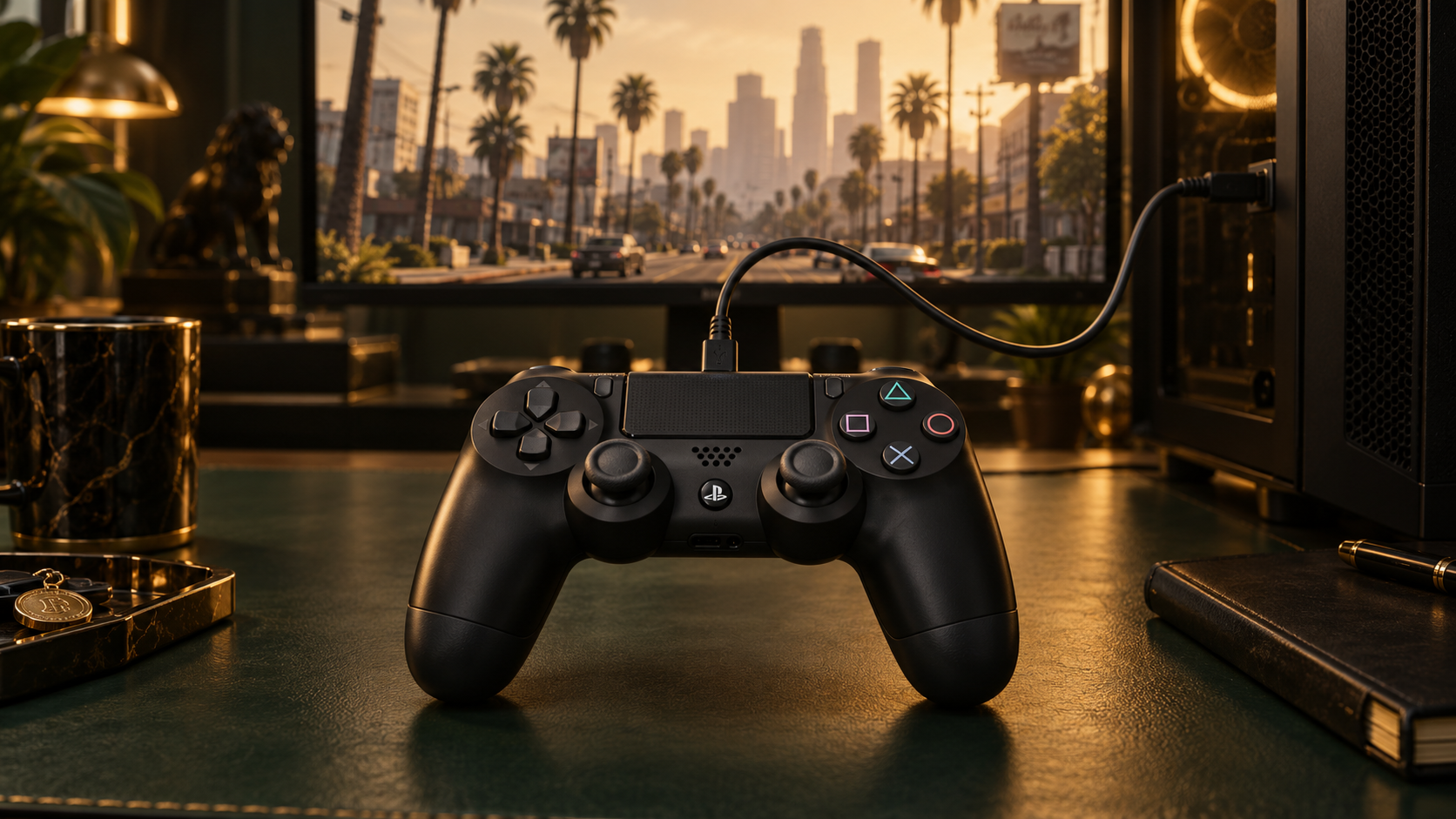
A PS4 controller can feel right at home when cruising through Los Santos. Getting it working on PC usually comes down to how the game receives its inputs: Windows may recognise your pad while the game still needs a compatible controller layout.
Steam Input and DS4Windows provide that translation. Steam keeps your configuration with the game in your Library; DS4Windows presents your pad as a virtual Xbox controller, including when you launch outside Steam. Choose one rather than running both together.
For players who already use Steam, controller configuration lives in Settings → Controller. Your connected pad should appear there. With Steam Input enabled for PlayStation controllers, the game's controller configuration offers a standard Gamepad layout. That keeps the sticks and triggers acting like controller inputs rather than keyboard keys.
GTA V purchased on Steam already has a Library entry. For another edition, choose Games → Add a Non-Steam Game to My Library, use Browse to find the executable, and select Add Selected Programs. This creates a shortcut without moving or reinstalling anything.
For Goldline, try adding FiveM.exe and launching that entry through Steam. Keep Steam open so its controller configuration stays available. Non-Steam launchers can behave differently; if the pad works in Steam but never reaches the game, DS4Windows offers another route.
The controller configuration belongs to the game or shortcut selected in your Library. Open its controller layout from that entry, or select the game in Big Picture mode and open its controller configuration. Choose a button or stick in the layout editor to change its assigned input, then apply the layout. Steam's desktop controls are separate: changing how the pad moves the Windows mouse does not change your in-game layout.
DS4Windows provides the same compatibility outside Steam by presenting your PS4 pad as an Xbox 360 controller. Setup begins with the extracted application: opening DS4Windows.exe starts its initial configuration. Choosing AppData when prompted keeps your profiles in your Windows user account. Install the runtime and virtual-controller driver required by that build; the driver is what makes the emulated pad available to games.
Once your pad appears under Controllers, assign the default Xbox 360 profile. You can also edit a profile under Profiles, choose Xbox 360 as its emulated output, save it and assign it to the controller. Leave DS4Windows running when you launch GTA V or FiveM. If you launch through Steam, disable Steam Input for that game to avoid overlapping mappings.
If you want to check the output before opening the game, press Win + R, enter joy.cpl, and open the virtual Xbox controller's Properties. The test display should respond to your buttons and sticks. Xbox button prompts in-game are normal with this setup.
Builds differ, so use the requirements supplied with yours. The community fork's project page explains its installation requirements and download source.
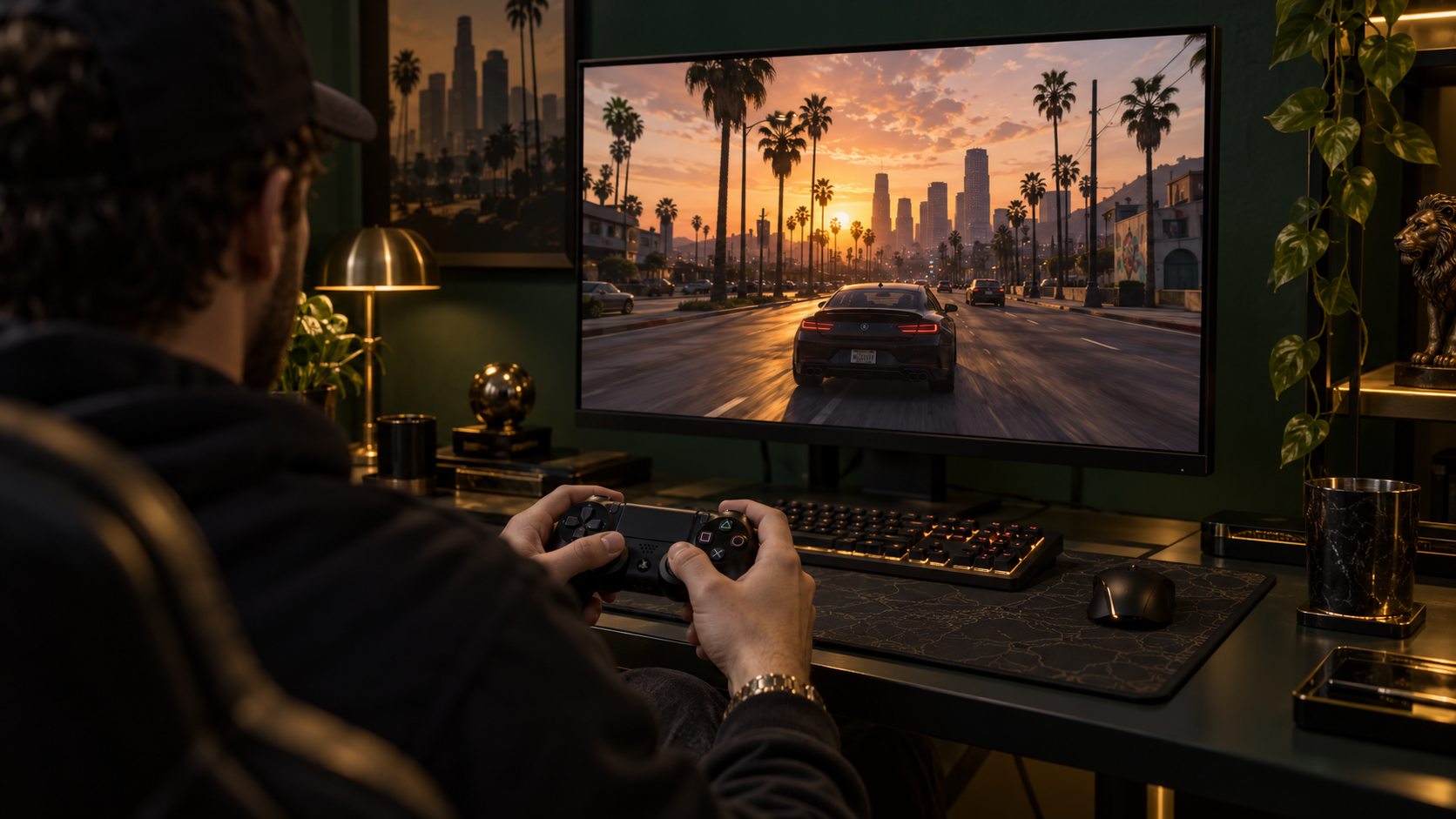
Once movement and driving respond, adjust sensitivity to suit your style. Keep a keyboard nearby for conversations, commands and custom menus: controller support for the base game does not automatically extend to every FiveM feature.
If menus jump two places at once, check for competing input mappers. DS4Windows can also leave both the physical and virtual pad visible to a game; its device-hiding instructions explain how to prevent that. If the camera drifts while you are not touching a stick, a small deadzone adjustment can help without making the controls feel sluggish.
If neither Steam nor DS4Windows sees the pad, check the Windows connection first. If GTA V responds but a Goldline menu does not, try that menu with the mouse before changing a working controller profile.
